










What is Project Working Mom?
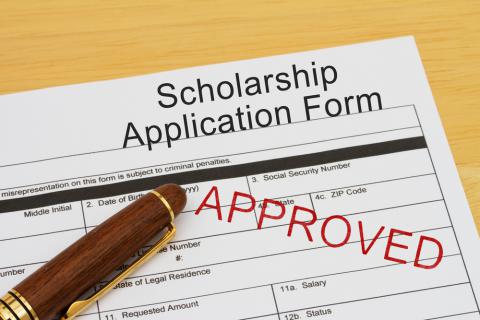
Project Working Mom aims to support and inspire the educational goals of working mothers across America. Project Working Mom helps people find scholarships for working moms and scholarships for dads going back to school. This project has made it possible for busy working moms to find financial resources to assist in their goals of returning to school. Additionally, the project has helped moms identify which degree may be right for them in going back to school and how to apply for educational scholarships, financial aid, and grants.
Project Working Mom has successfully elevated the issue of adult students’ needs to the level of national discourse. Thanks to Project Working Mom’s many inroads, we’re confident that community leaders and organizations will continue to address the barriers – time, money and confidence – that separate working parents from the higher education opportunities they need.
Scholarships for Working Moms
To date, 245 moms and dads received full-tuition scholarships for online degrees in their various fields. The awards granted through Project Working Mom are worth a combined total of 9 million dollars. And many of the recipients are already using their education to excel professionally.
If you’re among the millions of working moms or dads trying to support a family, you’ve probably given some thought to building a brighter future for yourself and your kids. If you’ve ever wondered how college could empower you to pursue new career goals, you might have heard of Project Working Mom. This program was created to help hardworking moms and dads pursue an education despite the many curveballs life can throw! Project Working Mom helped parents identify degree options that interested them, as well as possible financial resources to help make college a reality. Most importantly, Project Working Mom awarded 9 million dollars’ worth of full-tuition scholarships for online degrees to those who qualified, helping 245 moms and dads to pursue their college dreams.
Project Working Mom aims to help parents overcome the hurdles of higher education
In 2014, there were about 12 million single-parent families in the US, and more than 80% were headed by single mothers[i]. That means continued education for moms that work is particularly important! But many working moms and dads share similar roadblocks when it comes to going back to school. Some busy parents can’t find the time to attend classes in between a full-time job and taking care of the kids, housework, and other responsibilities. For moms and dads in this tough position, earning a college degree can seem impossible. Some may find that an online degree program offers a bit more flexibility and allows busy parents to complete coursework from anywhere with an internet connection – including at home after the kids are in bed! The option of online learning may be worth thinking about if a hectic schedule is getting in the way of your college goals.
Another major hurdle many single parents face is money. If you’re supporting kids and trying to make ends meet, it may be tough to imagine yourself affording college tuition. On the other hand, college may be a necessary step if you want to pursue a career that helps you pay the bills. Financial resources might be available to help those who qualify to make college a possibility. Consider looking into grants and scholarships for working moms, as well as federal and private financial aid and student loans that may be available to qualified individuals. You may also be able to use personal budgeting strategies in order to pay for college as you go.
While time and money are major reasons parents put off college, there’s a big, often-unspoken reason why moms and dads don’t go back to school: lack of confidence. Not believing in yourself can make college seem scary. You may worry that you won’t be able to handle your classes, or that you don’t have the strength to be both a student and a mom. Fortunately, many colleges have resources to help students like yourself – whether you need tutoring, academic advising, or career counseling. And while juggling student responsibilities along with parenting can be a challenge, many moms and dads jump at the chance to set a great example for their children.
Working parents who pursue their dreams
If you are a working parent planning to attend college, you’re not alone. In 2012, 17% of children from single-parent households had a parent who had earned a bachelor’s degree or higher. For two-parent households, that number rose to 47%! [ii] Hopefully, more diverse educational opportunities for working parents will mean that even more moms and dads reach their goal of earning a college degree.
Sometime a little inspiration can help you picture yourself achieving your career dreams. Why not check out Working Mother Magazine’s 50 Most Powerful Moms of 2015? Among these influential moms is Nancy Dubuc, President and CEO of A&E Networks and a mother of two. She’s won multiple Emmys and is one of today’s most powerful women in business. Angelina Jolie also made the list for juggling her work as an actor, writer, producer, director, and UN Ambassador with perhaps her favorite role: mother to six children. Other famous working moms include Kerry Washington, Sara Blakely (the inventor of Spanx), Tory Burch, Beyoncé, and lots of others.[iii] Of course, these powerful moms can afford the kind of help most parents don’t have—but everyone has to start somewhere!
[i]singlemotherguide.com/single-mother-statistics [ii]/nces.ed.gov/programs/coe/indicator_saa.asp [iii]workingmother.com/content/50-most-powerful-moms-2015?image=1